

%204.png) GuestPostMailer
GuestPostMailer





.png)
.png)
Email management plays an important role in today’s ever-evolving digital world for maintaining effective communication. Whether it’s managing a business or wanting to stay on top of personal communication, a constant flood of messages becomes overwhelming. Especially when it comes to handling large-volume conversations or repetitive queries, the task quickly becomes tedious and frustrating. This is where Gmail’s auto-reply feature comes into action. This feature enables you to create automated responses, use pre-built templates, and schedule follow-ups, ensuring senders receive timely communication.
Imagine you’re out of the office, heading on vacation, or simply taking a break from work—knowing how to set up automatic replies in Gmail ensures your contacts stay informed. Consequently, you save time, eliminate manual work, mitigate errors, and stay consistently responsive with this powerful Gmail feature.
However, this comprehensive guide breaks down everything you need to know about Gmail’s auto-reply feature, from setting up automated responses to creating custom templates and filters.
What is Auto-Reply in Gmail?
An auto reply is an automated feature that automatically sends pre-written messages in response to incoming emails while you’re unavailable. When a sender sends a message in your Gmail account, this feature instantly sends a custom message to them, ensuring timely acknowledgement without manual effort. Businesses often utilize this feature to efficiently manage high volumes of emails, deliver consistent responses, and improve relationships with clients. This reduces the need to frequently check your inbox, stay active for every incoming email, and manually type out replies.
In Gmail, there are two main types of automatic replies that you can set up:
- Vacation Responder (Out of Office Response): Allows you to send an automatic message to anyone who emails you within a specified time frame, primarily useful for longer absences such as medical leave, vacations, or out-of-office meetings.
- Template-Based Auto-Replies (Canned Responses): Reusable email templates paired with custom filters are used to automatically reply to senders based on specific conditions. These types of auto replies are ideal for managing the bulk of everyday emails or repetitive queries.
Similarly, businesses are also seeking “how to set up automatic reply in Outlook,” underscoring the importance of consistent communication across platforms.
Benefits of Setting Up Automatic Replies in Gmail
Setting up automatic replies in Gmail offers numerous important benefits that help optimize email communication and professional relationships. With Gmail’s auto-reply feature, you can benefit in several ways:
- Boost Productivity: With automated responses to complex and general queries, this feature helps save time, eliminate manual efforts, and ultimately increase productivity. Setting up auto replies in Gmail ensures that every incoming email gets a timely acknowledgement, even when you are unavailable or out of the office.
- Time Saving: Freeing you from repeatedly writing the same messages and enabling you to focus more on important tasks. Automating the process ensures senders receive timely acknowledgment of their emails and consistent responses to common queries.
- Enhance Professional Reputation: For businesses focused on strong customer relationships, maintaining professionalism is crucial. Auto replies reassure senders that their email has been received and will be addressed, reflecting your brand integrity and value proposition.
- Streamline Email Management: A smooth operational workflow and client relationship often come with an effective email management approach. Using the auto-reply feature helps you simplify your email management strategies, foster timely communication, and efficiently handle the influx of messages.
- Improve Relationships: Consistent, timely, and tailored responses to emails substantially improve your relationships with individuals. This proactive communication shows that each message holds a significant value and matters for you.
How to Set up Automatic Replies in Gmail
1. Set Up Auto-Reply Feature in Gmail
You’ve seen the benefits and importance of the auto-reply feature—now let’s dive into how to set up automatic replies in Gmail using custom templates and filters.
Enabling Gmail’s Auto-Reply Using Templates
The first and foremost step is to enable templates in Gmail.
1. Log in to the Gmail app on your desktop or smartphone
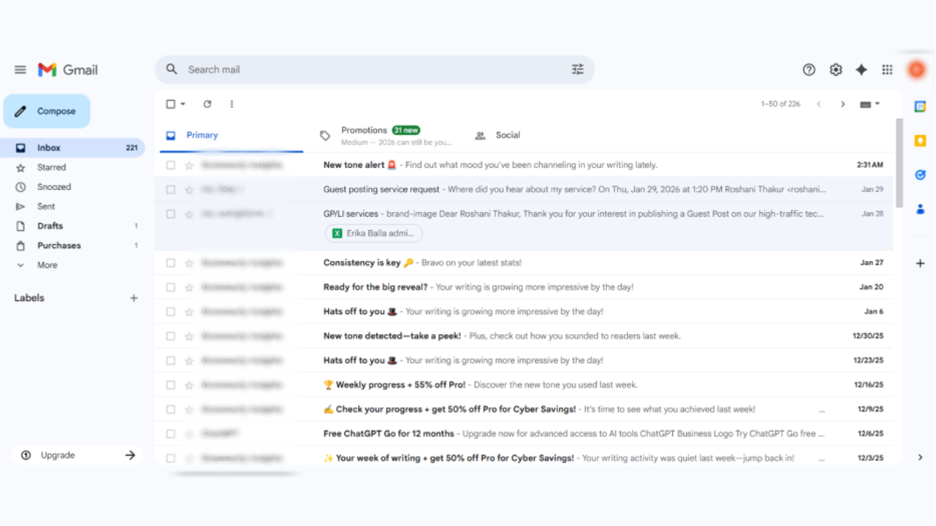
2. Navigate to Settings at the top right corner
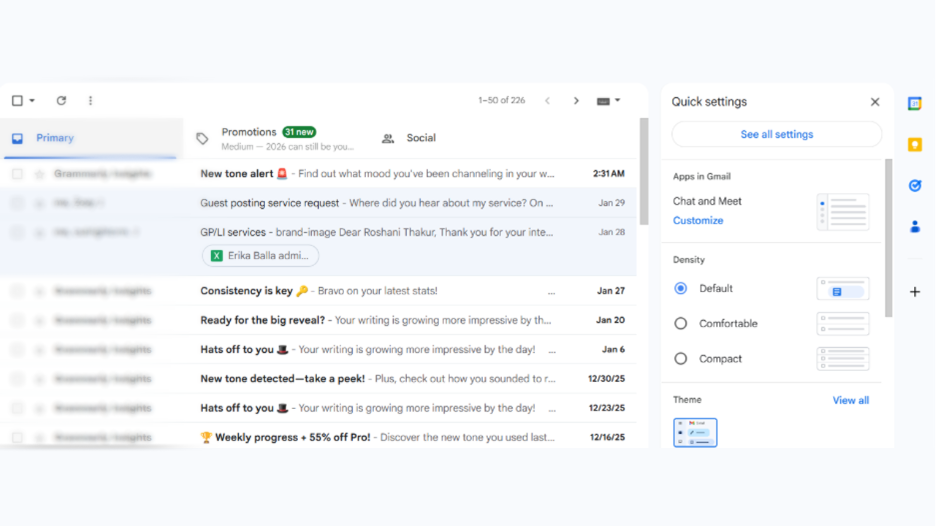
3. Go to “See All Settings.”
4. In the Advanced tab, find “Template” and click “Enable.”
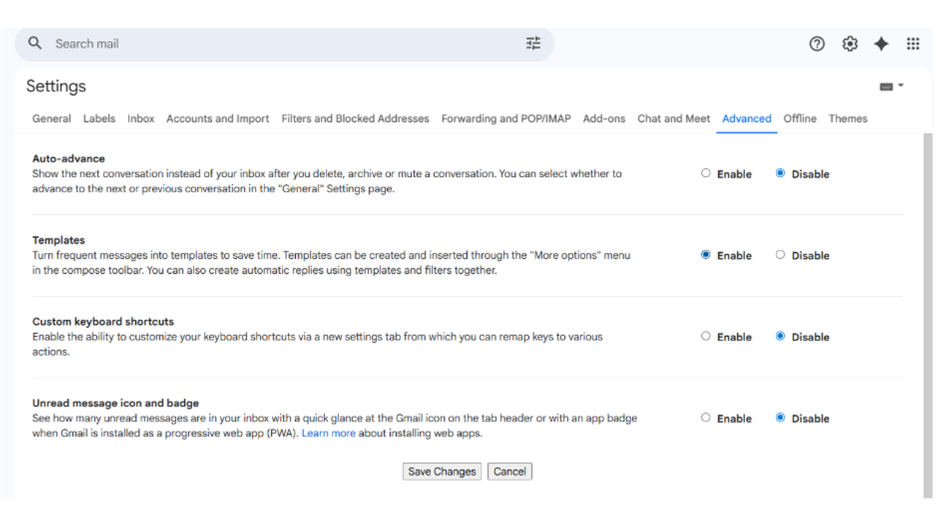
5. Scroll down and select “Save” to store the changes.
6. Choose a template
Creating a Custom Template for Automatic Replies in Gmail
Step 1: Compose an Email
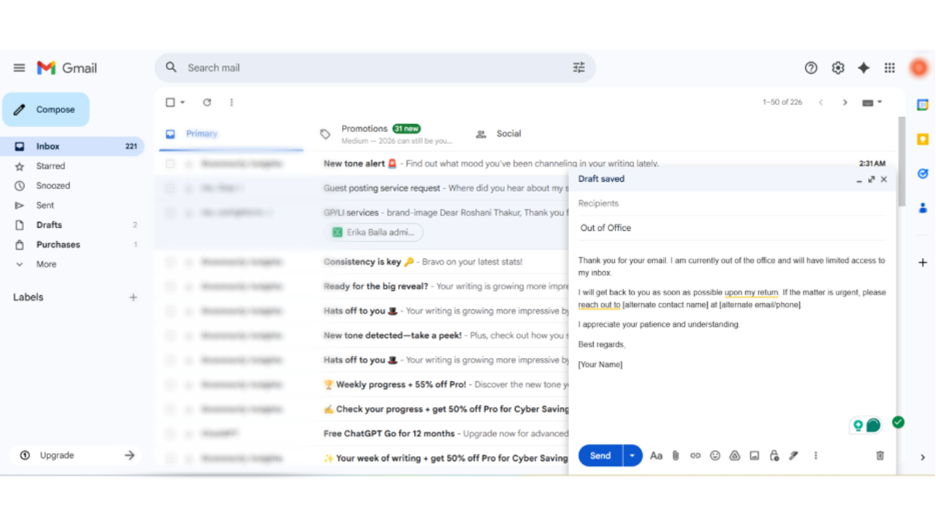
In the Gmail app, click “Compose” and create a custom message that you want to set up as an automated reply. Make sure the message is precisely written, which should have a clear subject line, a brief, informative message, and a professional closing.
Step 2: Build a Template
Once the email message is created, click the three-dots icon at the bottom of the email window and select “Template.”
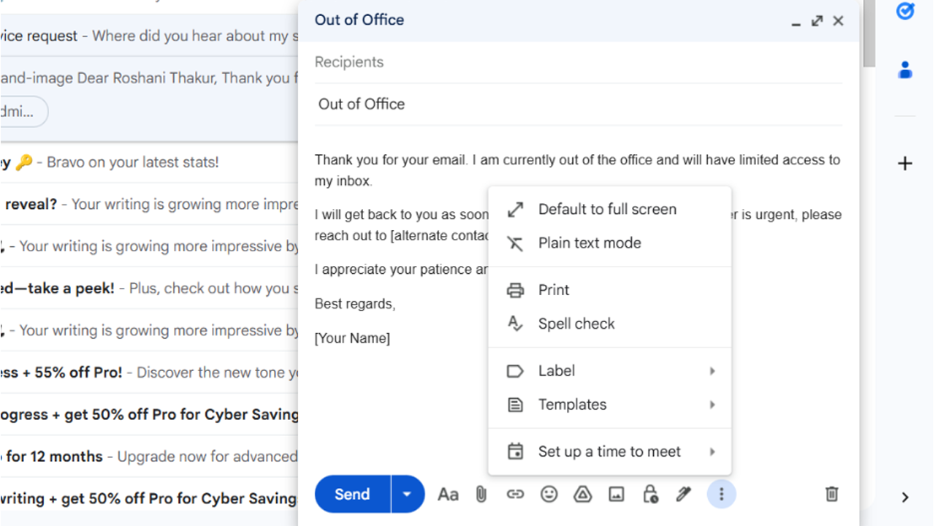
Step 3: Save as a Draft
Then click “Save Draft as Template.” This step ensures that the email template is ready to send, ensuring the sender will receive timely and professional communication.
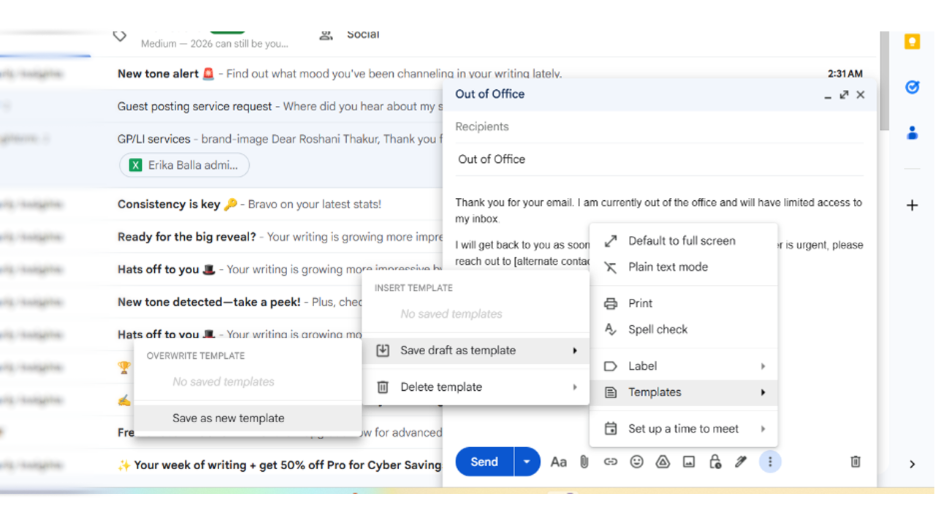
Setting up an Automatic Reply Filter in Gmail
With personalized filters, you can decide which incoming emails will receive your auto response. This method helps maintain prompt, professional communication across your contacts, especially when you're busy.
1. How to Create a Filter
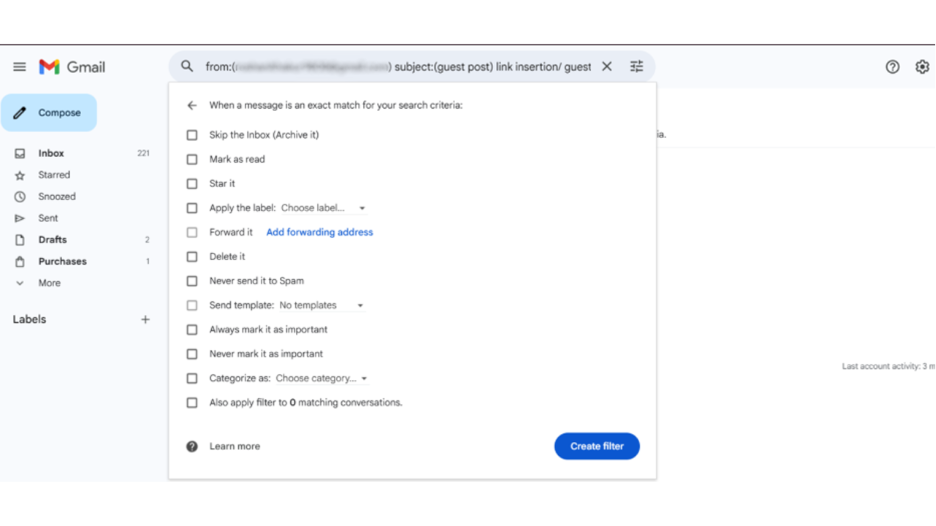
- Go to the Gmail platform, click on the search bar, and select the “Show Search Options” icon.
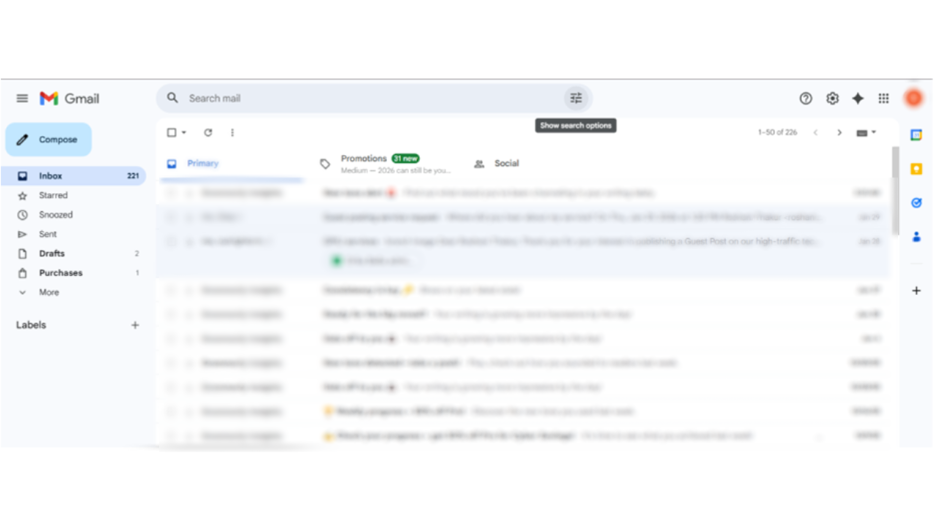
- Create your own rules for the auto-reply filter—it can be specific email addresses, subject lines, attachments, or any particular keywords that should or shouldn’t be in the email message.
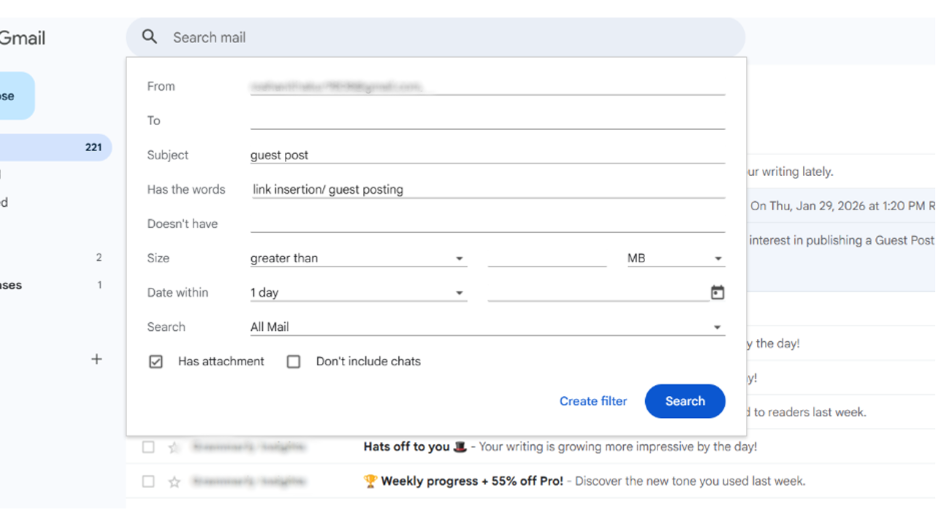
- After filling in the details, click “Create Filter.”
2. How to Set a Filter
In the next criteria window, define the action “Send Template,” then choose the auto-reply template you’ve created earlier. Then click “Create” to make a filter.
2. Setting up Out of the Office Auto Reply in Gmail
Especially when you are away from your work, Gmail’s out-of-the-office auto-reply feature sends an automatic reply whenever an incoming email is received. Also abbreviated as a vacation responder, this effective tool ensures keeping contacts informed and fosters seamless communication. By learning how to set up automatic replies in Gmail, you can effectively enable this feature in your Gmail to maintain professionalism in your absence.
Accessing the Feature:
- Open your Gmail app and log in with your account
- Click on the gear icon in upper right corner
- In the drop-down menu, select “See All Settings.”
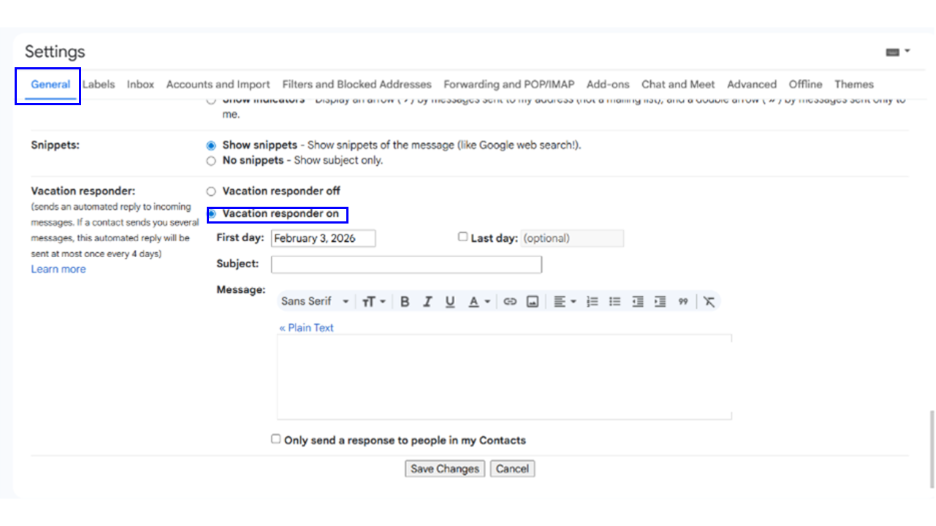
- Ensure the general tab is selected
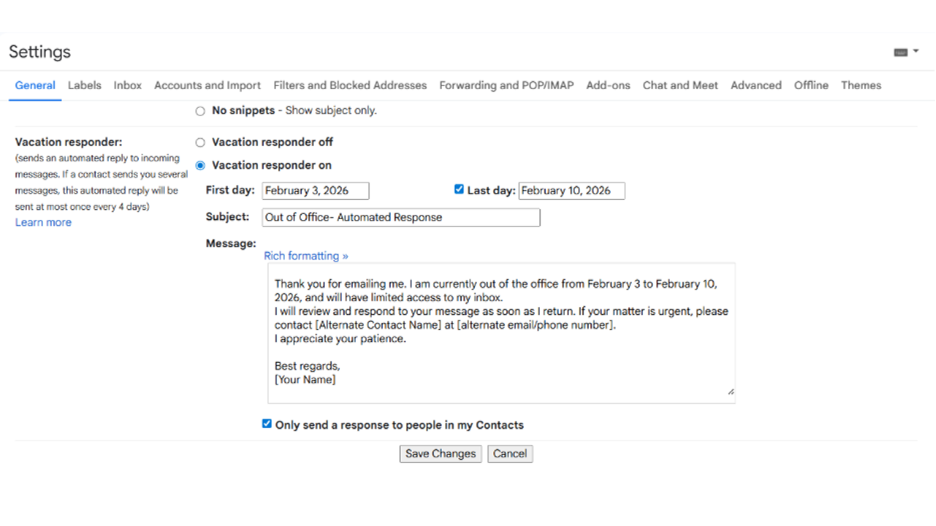
Enables Vacation Responder
- Locate General, Advanced, or Vacation Responder (It may depend on the version of Gmail)
- In Vacation Responder, mark “Vacation Responder on” to start this feature
Define the Timeframe
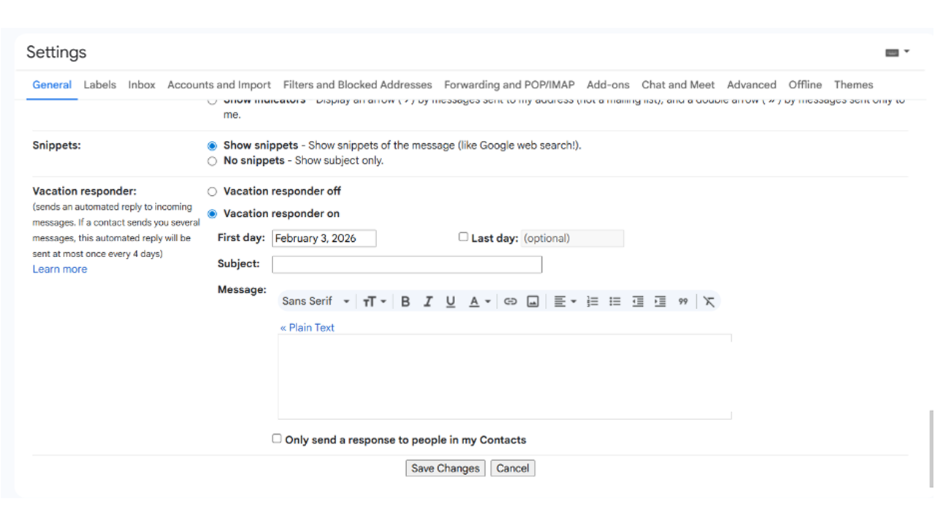
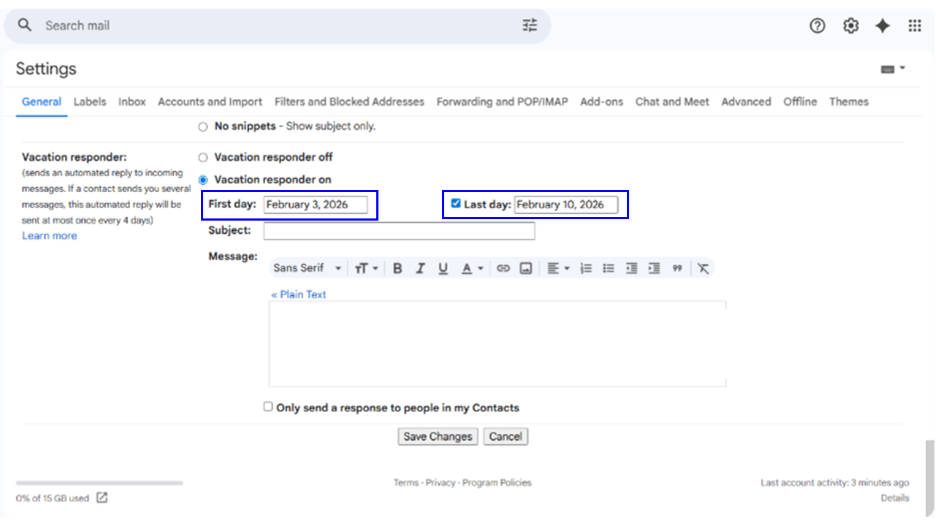
- Enter the first and last dates of auto-reply—the automated responses start to send on the date you have selected and stop after the end date.
Draft Your Own Message
- Create a clear, straight subject line (i.e., Out of the office, Away Until (date)).
- Compose your own customized message, including greetings, a brief reason for being away, and alternate contact information of someone who can assist them in your absence.
Quick Requirements
- Check the box “Only send responses to people in my contact list” if you want to send auto replies only to people in your contact list. This ensures that no unknown sender will receive your automated response.
- Click “Save Changes” to enable the settings
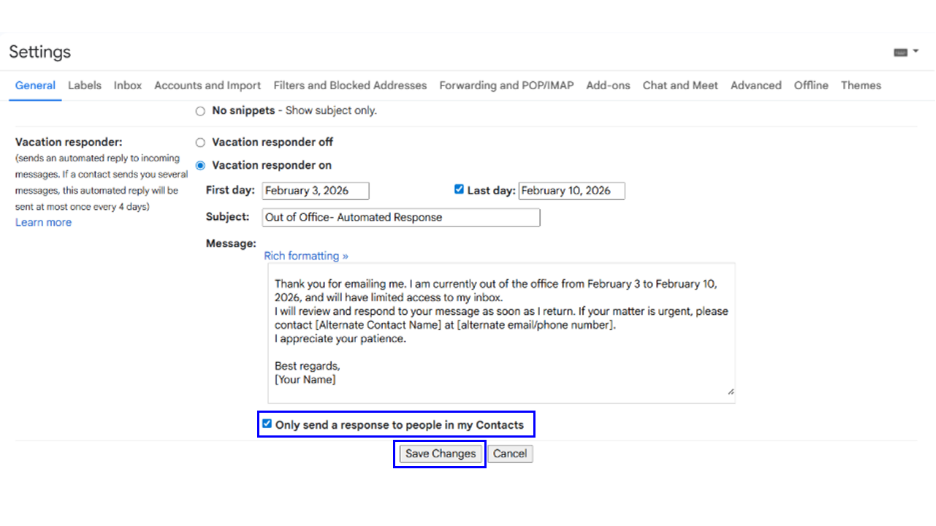
That’s it! Your out-of-the-office email reply is now set up and sent automatically to each incoming email from your contact list. With this response, the receiver will get to know that you’re away and back on a specific day, fostering professional relationships and seamless communication.
Conclusion
Understanding how to set up automatic replies in Gmail is as crucial as managing your inbox efficiently, since timely communication lays out the foundation of trust and relationships. You can set up this effective feature through various methods, including Vacation Responder and through template and filter-based auto replies. These robust features empower you to improve email management and communication efficiency. By following the mentioned steps and best practices, you can effortlessly set up automated replies, create templates, and manage a high volume of emails with no manual effort.
FAQs About How to Set Up Automatic Replies in Gmail
Q. What are the methods to enable auto replies in Gmail?
A. Gmail offers many ways to set up auto-replies, from creating out-of-the-office responses to enabling templates and creating automatic reply filters. These tools will help you manage your high volume of emails efficiently, ensuring your contacts stay informed and acknowledged.
Q. Can I set conditions to send auto replies in Gmail?
A. Yes. You can create and configure custom email filters to send conditional auto replies in Gmail. First, enable templates to set up automatic replies, and then create filters through the “Show search options” window in the Gmail search bar.
Q. How to set up automatic replies in Gmail?
A. You can set up auto replies by navigating to “See All Settings” in the Gmail application. Select Vacation Responder, turn it on, and craft a tailored message with a date range and a clear subject line. Then click “Save Changes” while checking the “To send the reply to the contacts only” box (Optional).

.png)
.png)
.png)
.png)