




.png)
.png)
A standard image query on Google typically returns thousands of results, and a lot of them can miss the mark. The size might be wrong, the license might be unclear, or the type of file might not be relevant to the project. Google images advanced search resolves this by providing you organized controls over what shows up in the results.
Designers, content writers, and marketers all gain from such controls. They help you save time, enhance accuracy, and make sure that competitor visual research becomes simpler. In this guide, let us find out how the platform operates, which filters are most important, and how you can integrate them with commands for more optimized results.
What Is Google Images Advanced Search?
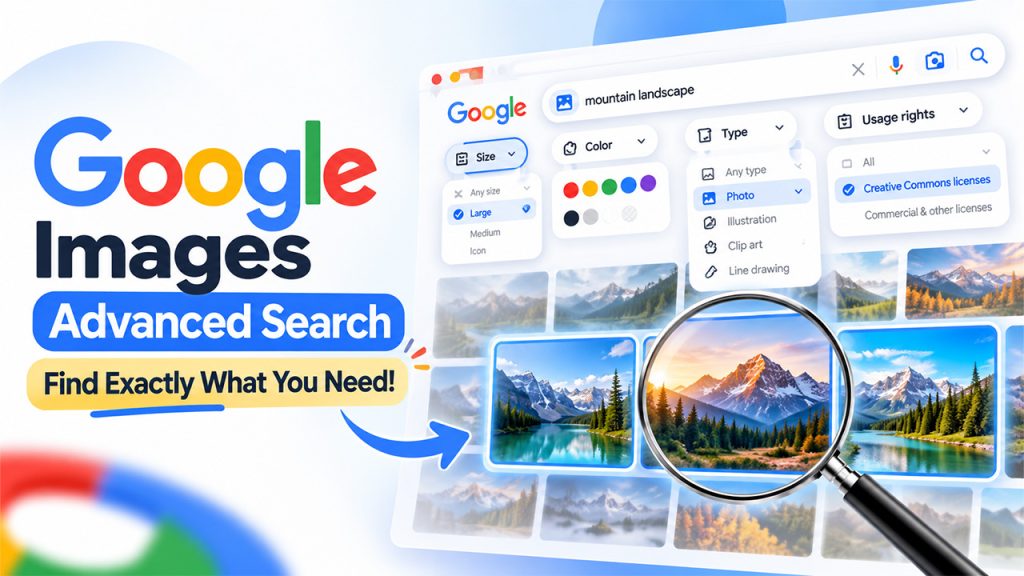
Google images advanced search is a dedicated page that allows you to fine-tune an image query with numerous conditions and filters all at once. It includes fields for size, words, color, shape, image type, region, and the usage rights on top of regular Google Images.
Filters are important since Google establishes its understanding of an image from different signals:
- Captions and Alt text.
- Surrounding text and page titles.
- Computer vision, which understands visual features like shape, color, and objects.
Since results draw on these factors, a generic and broad keyword returns a variety of results. Filters narrow the scope of such a tool and give you images that align with your precise requirements.
The tool helps by:
- Saving time: You find the right image without scrolling endlessly.
- Enhancing Quality: Resolution filters and size remove tiny or blurry files.
- Clarifying reuse: The usage rights filter out the points to images labeled for reutilization.
- Adding Context: Time and region filters reveal recent or local visuals.
How to Gain Access and Utilize Google Images Search Filters?
Methods to Gain Access to the Tool:
You can use google images advanced search in three main ways:
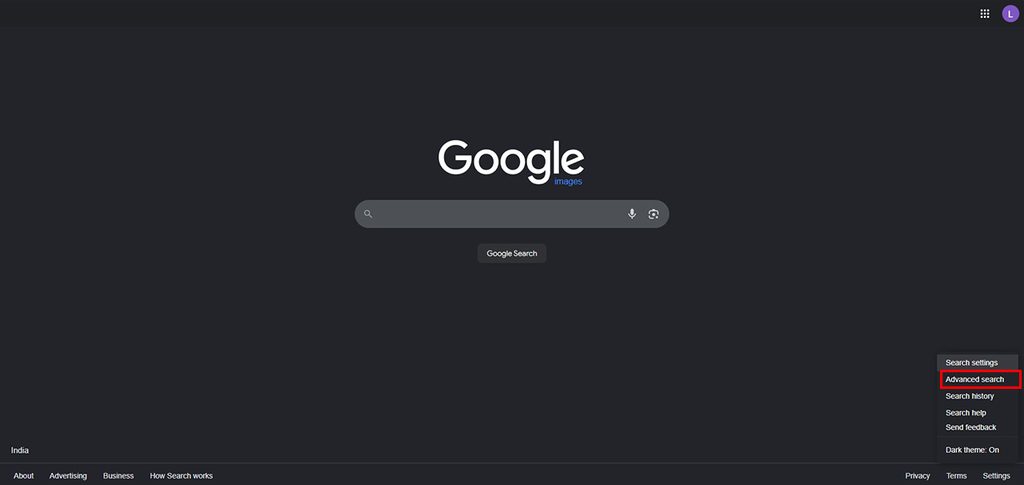
- Proceed to images.google.com and select the icon “Settings” existing in the top-right corner and then choose “Advanced Search.”
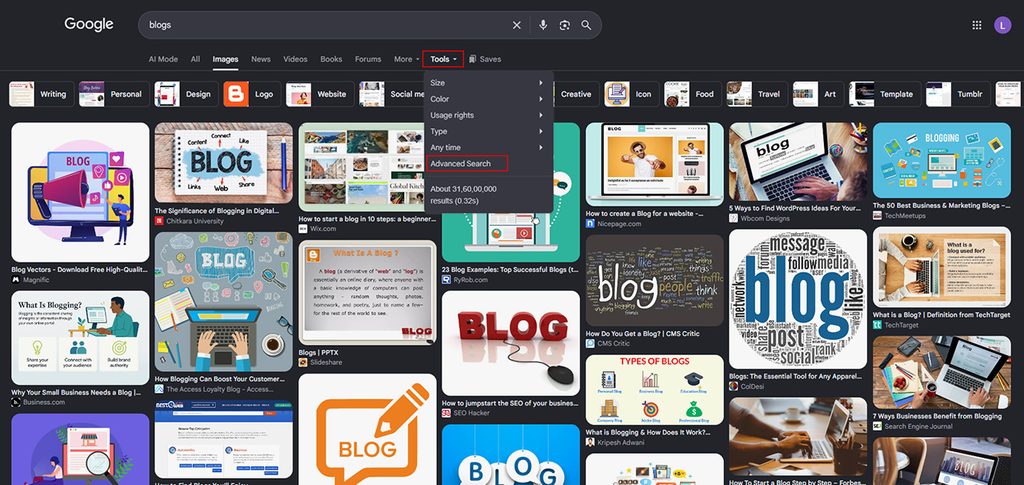
- Start any image search, then select “Tools” under the search bar for fast filters.
- In your browser, directly open “Google.com/advanced_image_search.”
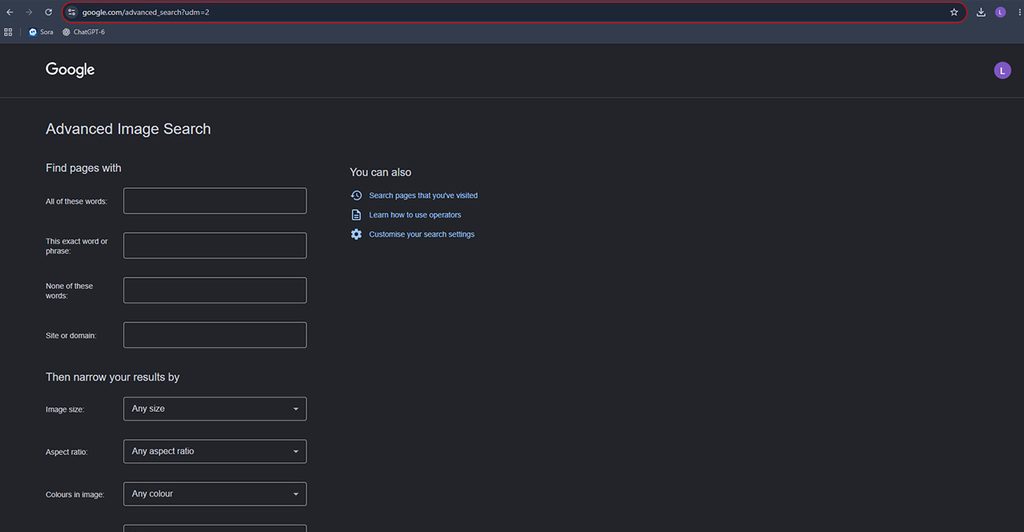
The Tools menu is quicker for single filters, while the advanced page allows you to establish different conditions together.
Filters That Improve Results
The Google Images search filters given below cover most real-world requirements:
- Word fields: You can use the words field filter to match all these words, match an exact phrase or word, match any of these words, or exclude words using none of these words field.
- Image size: Choose Medium, Large, or Icon, or configure a minimum size to stop low-resolution files.
- Aspect ratio: Choose square, tall, wide, or panoramic shapes for thumbnails, banners, or portraits.
- Color: Select full color, black and white, transparent, or a specific shade.
- Type: Narrow down your results to photo, face, line drawing, clip art, or animated images.
- Region: Limit the results to images from a selected country.
- Domain or Site Domain: Restrict results specific to a domain type or single website.
- File type: Request formats like PNG, JPG, SVG, GIF, or WEBP.
- Usage rights: Filter by commercial, creative commons, and other license labels.
- Time: Showcase images from past year, month, week, or 24 hours.
Combining filters provides you with the right outcome. For a banner in blog, select a large size, a broad aspect ratio, and an image categorized for reuse. Always provide confirmation on the source website before publishing, since a filter label alone is no longer a guarantee.
Utilizing Google Image Search Operators for Additional Precision
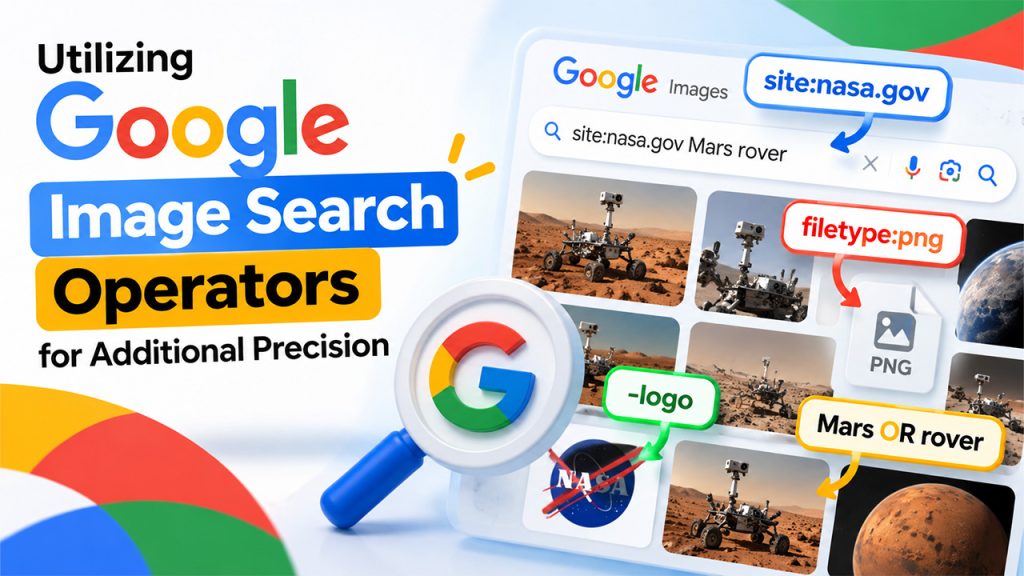
Google image search operators can be referred to as short commands typed in to the search bar straight away. They work along with the filters and assist you when you require speed over form fields. For a wider list of commands apart from images, this complete guide on Google Search Operators is a helpful reference:
Such commands are the most helpful solution for image work:
- Site: Focuses results to a single domain. For instance, “site:nasa.gov Mars rover” returns Mars rover images from the official website.
- Filetype: Restricts results to a single format. For instance, filetype:png logo returns images of logo in PNG format.
- Minus Sign: Keeps a term excluded. To not look for an image associated with a keyword, use a “-” symbol before the keyword.
- OR: Use alternatives in a single query. Type it in capital letters so Google reads it with a command.
Follow the above two habits to make sure that the commands keep working. Keep no space between the query and the operator, so write site:example.com instead of site: example.com. Also be mindful of the fact that Google can modify or retire operators over time, so depend on the advanced search page whenever a command does not respond.
What Are the Main Use Cases for Marketers and Content Team?
The tool is helpful beyond looking for stock visuals. SEO and marketing teams utilize it for research in the following ways:
- Competitor Visuals: Combine the site or domain filter with a keyword to see how a competitor presents products, names of image files, and uses infographics.
- Trend spotting: Use the region and time filters to check which visuals brands are publishing currently in a particular market.
- Source Tracing: Utilize reverse image search by choosing the camera icon in Google Image, then you can upload a file or paste an image in the URL. Google showcases larger versions, matching pages, and the original source.
- Guest post research: Implement a reverse image search on the headshot of the competitor's author to look for where that author publishes articles.
Combine such visual findings with SERP insight to evaluate which topics and content formats need your attention.
The same information enhances your own image SEO. Write concise alt text, leverage descriptive file names, and place the images near captions and relevant text. Do not stuff keywords into alt text and ensure that the images remain original and sharp. Post-publishing, SERP monitoring reveals how your search features and pages, including image packs perform over time.
Conclusion
Google images advanced search converts a cluttered and broad image query into a dependable and emphasized search. The tools menu and advanced page cover type, size, region, color, and usage rights, while Google image search operators include fast control for file type, site, and exclusions.
Begin with one or multiple Google Images search filters, then use them in combination as your requirements grow. Validate licenses before reutilization and use the same approach to image optimization and competitor research. With consistent practice, google images advanced search turns out to be a reliable aspect of any content workflow.


.png)
.png)