



.png)
.png)
The guide explains what the latest Google AI Agent labeling requirement means, how to configure an OAuth client, why separate client IDs matter, and what developers should do to prepare their applications.
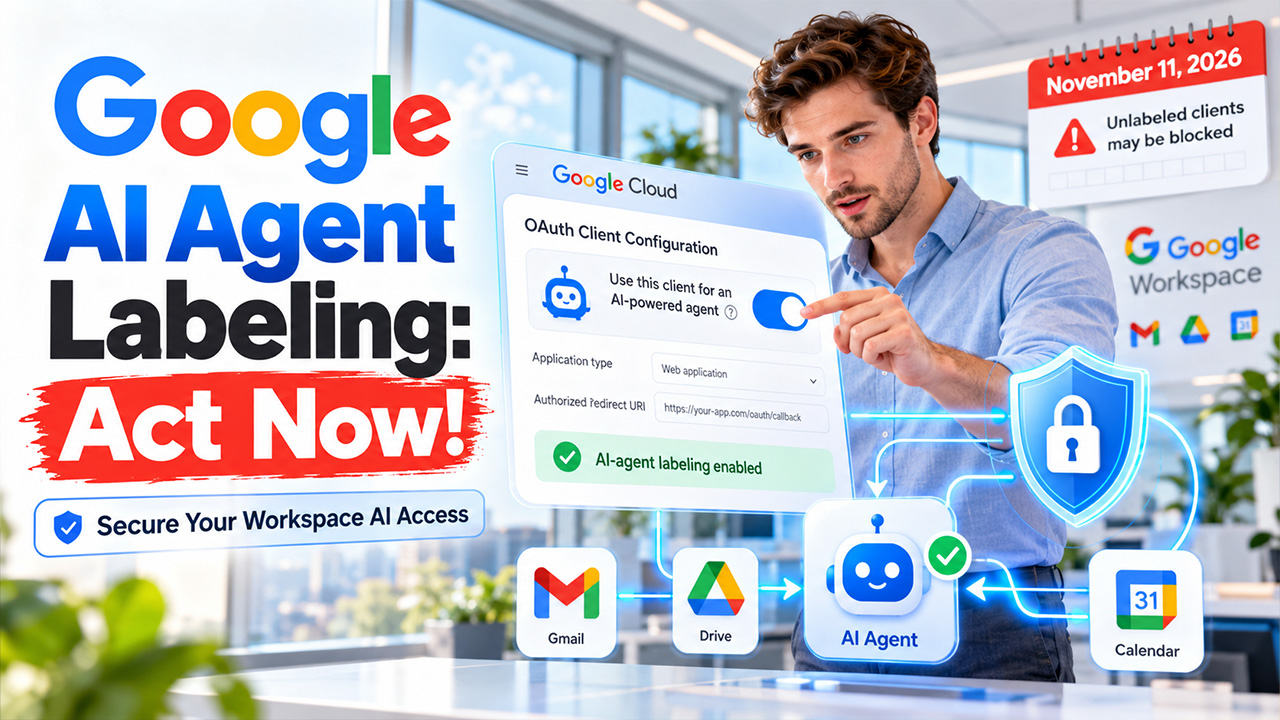
Google is introducing a new requirement for developers connecting AI agents to Google Workspace through the Model Context Protocol (MCP). The OAuth clients that are used for these integrations must be explicitly designated for AI-agent use. The reported deadline is especially important, as starting November 11, 2026, Workspace MCO servers will reject requests from OAuth clients that have not been appropriately labeled.
This change makes OAuth configuration an essential part of deploying AI-powered integrations with Gmail, Google Drive, Google Calendar, and other Workspace services. Businesses exploring these integrations can also learn more about Gmail CRM integrations and how they support connected communication workflows.
What Is Google’s AI Agent Labeling Requirement?
Google’s AI agent labeling requirement refers to the setting in Google Cloud Console that lets developers identify an OAuth client as being used by an AI-powered agent.
What Is the November 2026 Deadline?
The November 2026 deadline refers to Google's reported requirement that developers need to correctly label OAuth clients that is used by AI agents to access Google Workspace through Model Context Protocol (MCP) servers.
The changes are expected to involve two key dates, which include:
- November 11, 2026: Google Workspace MCP servers are expected to begin rejecting requests from OAuth clients that have not been designated for AI-agent use.
- November 12, 2026: The AI-agent classification is reported to become permanent for existing OAuth clients, meaning developers should ensure their clients are correctly classified before this date.
Why is Google Making These Changes?
Google is introducing AI-agent labeling to improve security, visibility, and control over how AI applications access Google Workspace data. The AI agents can interpret user instructions, retrieve information from multiple services, and perform actions such as drafting emails or scheduling meetings.
Some of the major reasons for the changes are as follows:
- Improved Security: Identifying AI-agent OAuth clients helps organizations distinguish automated and AI-driven activity from conventional application access.
- Better Access Control: Administrators can easily apply more targeted policies to AI agents without affecting the standard application functionality.
- Greater Visibility and Monitoring: Separate OAuth client IDs make it easier to identify agent-related activity and investigate access issues.
- Reduced Risk of Unauthorized Actions: Clearly identifying agent integrations helps organizations manage permissions and monitor how AI tools interact with sensitive data.
- Safer AI Adoption: The classification supports the use of AI agents while preserving existing OAuth requirements, including user consent and appropriate permissions.
How to Enable AI Agent Labeling in Google Cloud Console
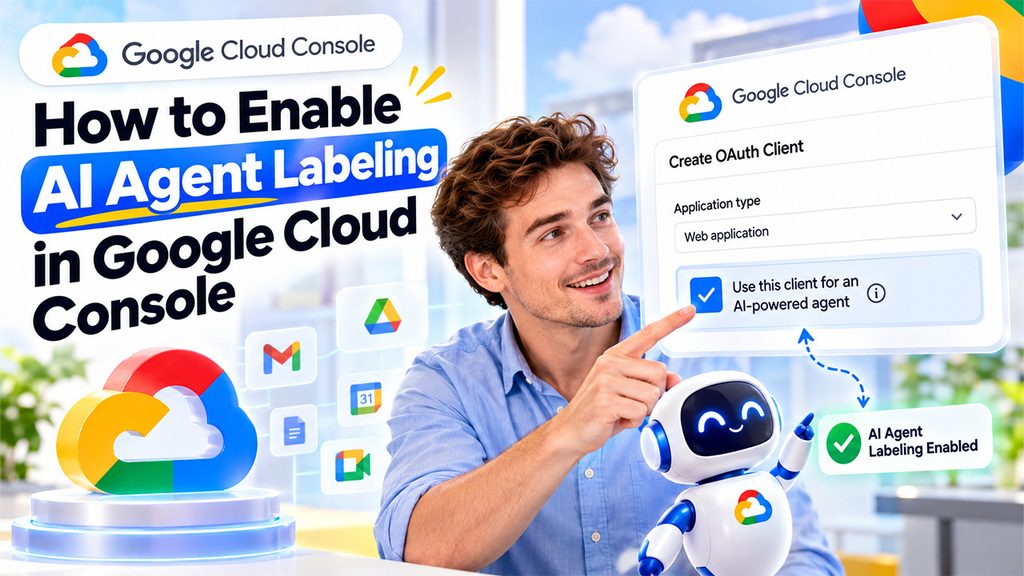
The process to enable AI agent labeling in Google Cloud Console is listed below:
- Step 1: Open Google Cloud Console and Navigate to OAuth Clients
Users can visit the official Google Cloud Console website and select the project used by their AI agent.
Go to Google Auth Platform > Clients > Create Client. If prompted, configure your OAuth consent screen under Branding, Audience, and Data Access before proceeding.
- Step 2: Configure the OAuth Client
Select Web Application when that is the application type required by the MCP integration. Enter a client name and add the exact authorized redirect URI supplied by the AI application.
- Step 3: Enable AI-agent Labeling
Select Use this client for an AI-powered agent during the OAuth client creation. This key setting helps identify the client as being used for AI-agent access to Workspace MCP servers.
After completing the configuration, click Create.
- Step 4: Save the OAuth Credential Securely
Copy the generated client ID and client secret. Store the client secret in a secure secret manager.
Before testing the integration, verify that the OAuth client requests only the permissions needed for its intended operations. Developers configuring Gmail access can also review this Gmail API scope verification guide to better understand OAuth permissions, scope verification, and user consent.
- Step 5: Connect the MCP Server
Add the OAuth credentials and the appropriate Google Workspace MCP server URL to the AI application configuration.
- Step 6: Authenticate and Test
Sign in through the configured OAuth flow and verify that the agent can access its intended Workspace tools.
Why Separate OAuth Client IDs Matter
Separate OAuth client IDs help distinguish conventional applications from AI agents that access Google Workspace through Model Context Protocol (MCP) servers. This distinction is considered essential, as AI agents may interpret instructions, retrieve sensitive information, and perform actions across multiple services, such as Google Drive, Gmail, and Google Calendar.
Some of the major advantages of using separate OAuth Client IDs are as follows:
- Improved Security and Access Management
The AI agent may perform multiple operations in response to a single user request. By separating OAuth identities, administrators can easily identify which integration is responsible for a particular access request.
- Better Monitoring and Visibility
Separate OAuth clients make it easier to associate authentication activity with the appropriate application or AI agent.
- Reduced disruption to existing applications
If an organization adds AI-agent capabilities to an existing product, changing the OAuth configuration for the entire application could affect its conventional features.
Security Best Practices for AI-Agent OAuth Clients
Securing AI-agent OAuth clients is important when connecting AI applications to Google Workspace through MCP. These agents may access emails, documents, calendars, and other sensitive business information, so developers must ensure that authentication, permissions, and data access are properly controlled.
- Use Separate OAuth Clients for AI Agents
Create a dedicated OAuth client for AI-agent functionality rather than sharing the same client with a conventional application. This separation makes it easier to manage agent-specific configuration, monitor access, and troubleshoot authentication issues without unnecessarily affecting other application features.
- Follow the Principle of Least Privilege
It offers the AI agents only the permissions they need to perform their assigned tasks. Review the OAuth scopes carefully and remove unnecessary permissions. Where supported, restrict access to specific resources and require additional authorization for sensitive actions.
- Require Appropriate User Authorization
AI agents should access Workspace data only through the appropriate authorization process. For consequential operations, such as sending an email, deleting a file, or modifying a shared calendar, consider requiring explicit user confirmation before execution.
Conclusion
Google's AI agent labeling requirement highlights the importance of secure and transparent access to Google Workspace through MCP. By correctly configuring OAuth clients, separating AI-agent identities from conventional applications, and following security best practices, developers can minimize disruptions and maintain better control over sensitive data.

.png)
.png)