



.png)
.png)
Cloud computing is without a doubt one of the pillars of modern businesses, and Amazon Web Services is obviously one of the market-leading platforms for storing data, hosting applications, and executing virtual infrastructure. At the heart of this environment is something known as AWS Console, the web-driven interface that enables users to handle each AWS service from a centralized dashboard. Irrespective of whether you are just exploring AWS Cloud Computing or launching first virtual server, understanding how to correctly navigate the console can save you time and avoid costly configuration errors. In this guide, let us walk through the beginner’s guide that lets you know everything you need to get started, from accessing account to daily navigation.
Understanding AWS Console
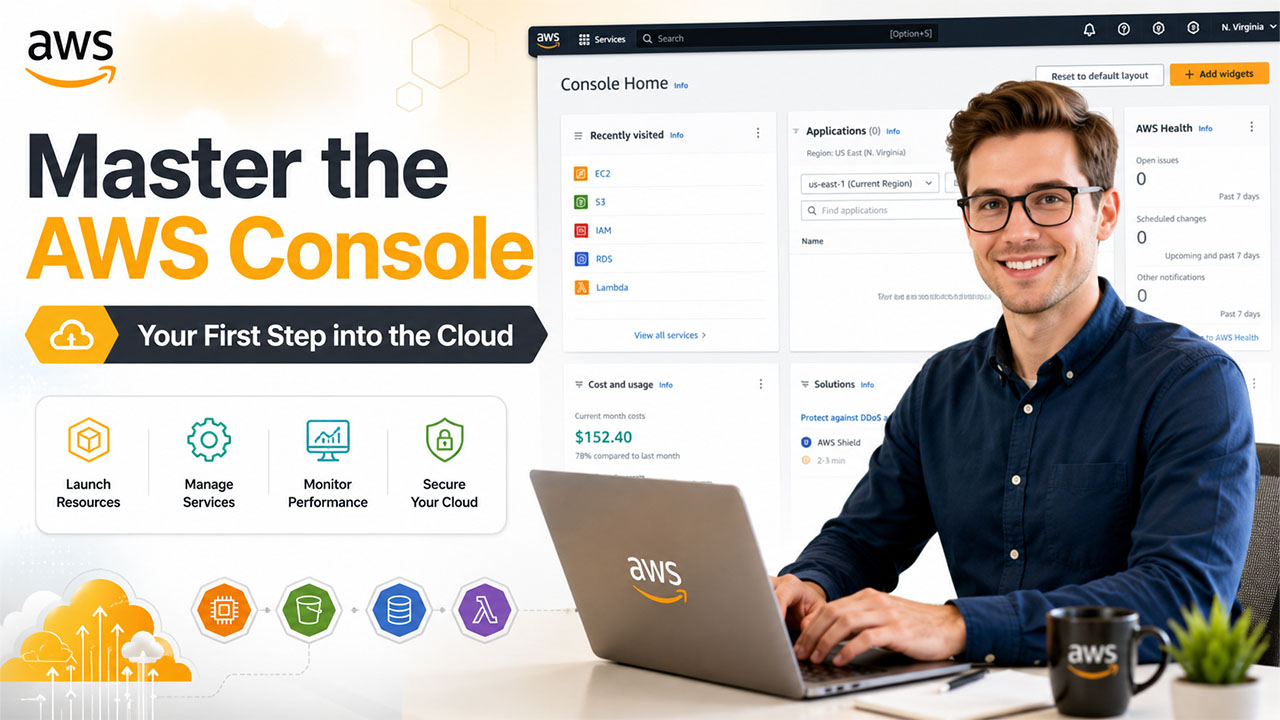
Hopefully, you are familiar with the fundamentals of Amazon Web Services. So, now the AWS Management Console refers to web applications that centralize all individual AWS service consoles into one simplified platform. Instead of handling storage, servers, and databases through individual tools, users can set up, track, and operate services such as S3, EC2, and RDS directly from a web browser, without writing a single line of code.
Once a user logs in, they go straight to the AWS Console Home page, which works as a control center for the complete account. From here, users can:
- Access separate service dashboards through the Services menu.
- Search for particular tools via centralized search.
- View billing, accounts, and security data.
- Personalize the home page with widgets like AWS Health and Recently Visited.
Since it centralizes access to more than 200 AWS services at once place, the Amazon AWS Console is generally the first tool that new users interact with when establishing cloud infrastructure.
How You Can Access the AWS Console Login?
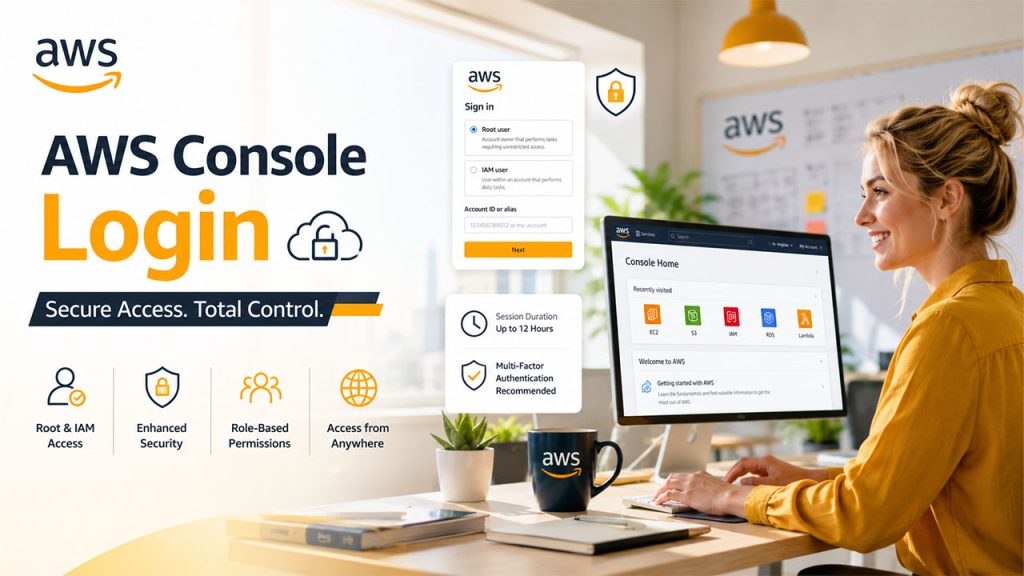
Entering the console begins with a straightforward AWS console login process. However, the steps vary slightly as per the type of user account involved.
For root users:
- Go to the official login page at console.aws.amazon.com.
- Choose Root User as the type of account.
- Provide the email address related to the AWS account.
- Give your account password to finish the sign-in.
For IAM users:
- Leverage the unique sign-in URL as shared by the account administrator, which generally follows this format: account_alias_or_id.signin.aws.amazon.com/console
- Provide your IAM username and password.
- When prompted, enter the account ID or alias.
It is worth keeping note of the fact that AWS discourages utilizing user credentials for daily tasks. Root access must be reserved for actions at the account level, while IAM users manage routine service management. This separation enhances security and ensures that permissions are organized across different teams. Users can also sign in with 5 different identities at the same time within a single browser session, which is valuable for administrators handling distinct environments.
For improved protection, login sessions on the AWS Console expire automatically after 12 hours, which needs users to login again and restart their activity. Allowing multi-factor authentication is suggested strongly, which adds an additional layer of security apart from just a password.
What Are the AWS Management Console’s Main Features?
Once you are logged in, the dashboard provides a different range of tools specialized to centralize cloud management, even for users with no previous technical background.
- Centralized Navigation: A navigation bar at the top ensures quick accessibility to notifications, account details, AWS CloudShell, and billing details from anywhere in the console.
- Console Home Widgets: Users can remove, add, or rearrange widgets that showcase security findings, cost trends, services visited recently, and infrastructure health across different regions.
- Service Search: The Services menu streamlines tools by category, like Storage, Compute, and Database, while search enables users to directly jump to a particular service by name.
- Region Selector: Located closer to the username, this option shows the present AWS region and enables users to switch between available regions as per where they want to deploy resources.
- Cost and Billing Management: Having a dedicated dashboard provides users with a clear overview of active resources, spending, free tier usage, assisting in avoiding unexpected charges.
- AWS CloudShell: A browser-driven shell that comes with pre-verified console credentials, enabling users to implement AWS CLI commands without further setup.
- Mobile Access: The AWS Console mobile app enables users to track resources and respond to alerts from their Android or iOS devices while they are far away from their system.
These characteristics collaborate together to improve accessibility of AWS Management Console for beginners while still being sufficient for experienced cloud architects.
Detailed Guide to Utilizing the AWS Console
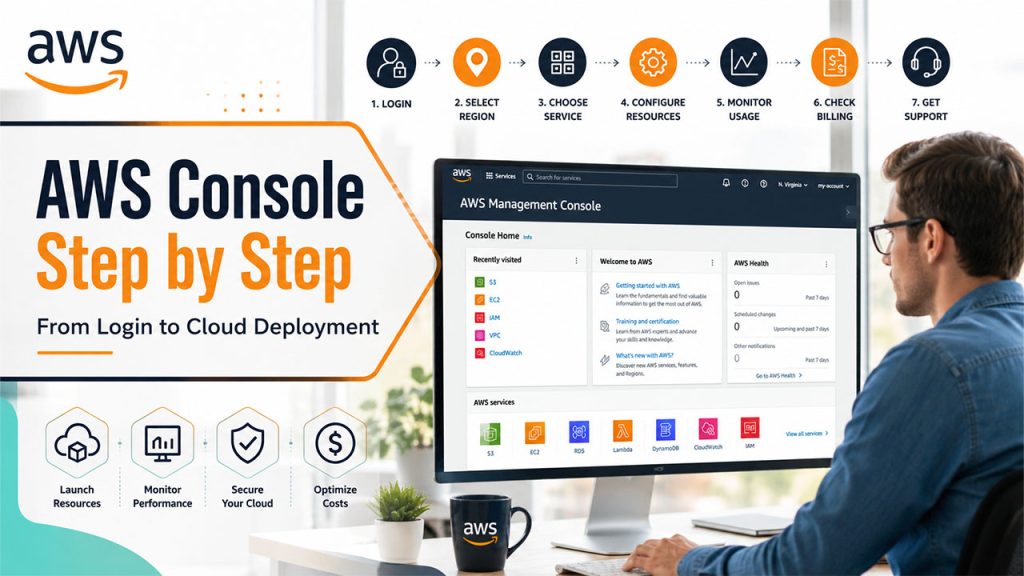
Once you are familiar with the layout, utilizing the console for actual tasks becomes simple. Here is a straightforward workflow for beginners:
- Log in through either IAM or room credentials, as per the type of account.
- Choose your region via the region indicator closer to the top right, since pricing and the resource available can change by location.
- Select the Services menu and then click on the service that you wish to work with, like the S3 for storage or EC3 for virtual servers.
- Set up the resource via the guided setup wizards that most services provide, which allow users to walk through the needed setting step-by-step.
- Track usage through individual service dashboards or console home widgets to monitor costs and performance.
- Regularly check billing through Cost Explorer to go through spending and avoid surprise changes.
- Use the Support Center if problems arise, since AWS forums, documentation, and support plans are all accessible from the console directly.
Executing this structure allows new users to prevent common issues such as overlooking billing alerts or deploying resources in the wrong region until costs are accumulated.
What Are the Right Practices That Beginners Can Follow?
- Allow multi-factor authentication on both IAM and root accounts for robust security.
- Avoid utilizing root credentials for day-to-day processes; ensure IAM users with restricted permissions instead.
- Set up billing alerts early to stay informed about usage and avoid unexpected charges.
- Frequently bookmark used services in the Favorites bar for fast accessibility.
- Go through AWS documentation and re:Post resources to learn about any new service.
Conclusion
Being comfortable with AWS Console is an important step toward confidently using AWS Cloud Computing. From finishing the process of AWS Console login to exploring the core features of the dashboard, the console is developed to be approachable for beginners while providing the depth that professionals require. With consistent practice, structured navigation, and attention to basics of security such as multi-factor authentication, new users can efficiently handle their cloud resources and avoid the common setup errors from the beginning.



.png)
.png)