



.png)
.png)
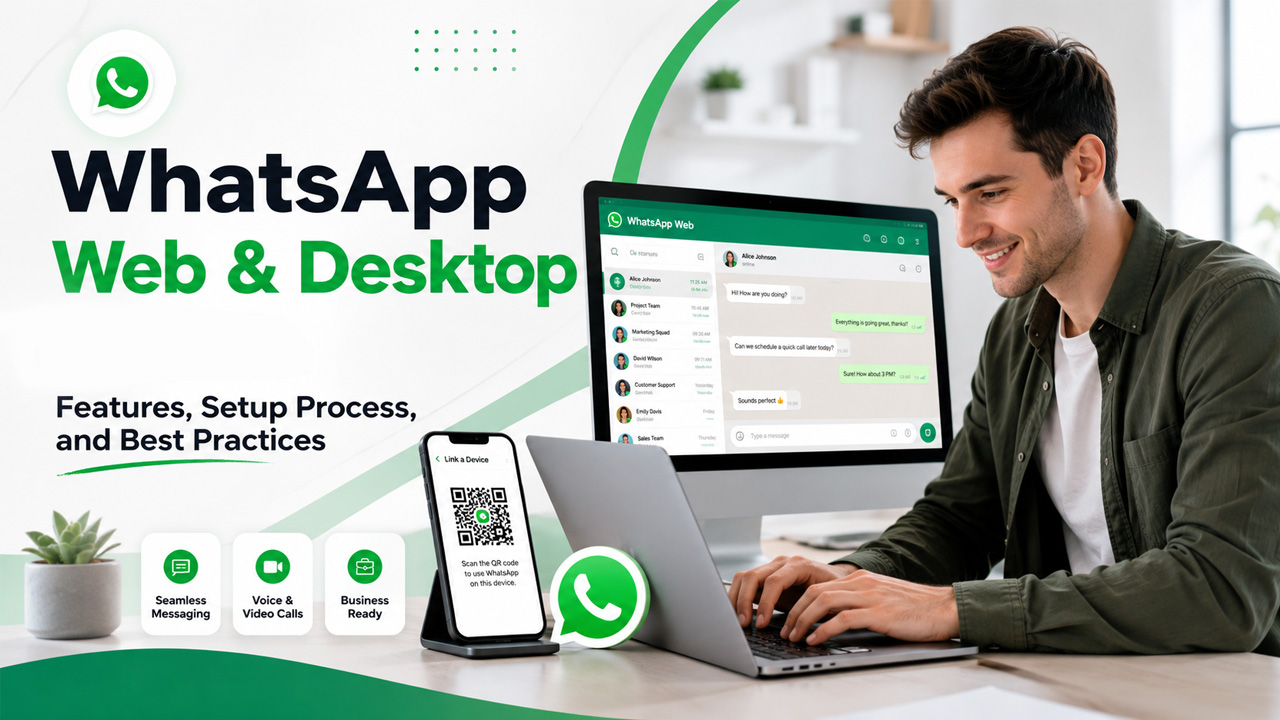
If you’ve ever found yourself typing out long WhatsApp replies on your phone and wishing you had a real keyboard, you’re not alone. That’s exactly the gap WhatsApp Web fills, letting you manage chats, send files, and reply faster, all from your computer screen instead of a tiny phone display.
Whether you call it wpp web, the browser version, or just “WhatsApp on my laptop”, it’s become a daily tool for millions of people, especially those juggling personal chats alongside business conversations. Alongside it, the WhatsApp Desktop app offers a more stable, standalone experience for people who want something faster than a browser tab.
In this blog, we’ll walk through what WhatsApp Web actually is, how to set it up, and where it works well, including for businesses exploring WhatsApp Business Web for things like customer outreach and WhatsApp Communications at scale.
In short: This guide covers everything you need to know about WhatsApp Web and Desktop app in 2026: setup, features like file sharing and video calls, common fixes for QR code or sync issues, and how WhatsApp Web fits into guest posting compared to a dedicated tool like GuestPostCRM.
What is WhatsApp Web?
WhatsApp Web is merely the web-based version of WhatsApp, making it possible to access your WhatsApp account from the browser without needing any installation. All that you need to do to get started with WhatsApp Web is scan a QR code that would connect your smartphone WhatsApp account to your computer, enabling you to exchange messages and even share files using the full keyboard of your computer.
While WhatsApp Web runs inside the browser as a tab, WhatsApp Desktop operates as a software that provides a similar interface to WhatsApp Web. However, WhatsApp Desktop tends to work faster and more smoothly than WhatsApp Web. Both run it in tandem with your mobile WhatsApp account rather than being independent applications.
Key Features of WhatsApp Web and Desktop
Before proceeding to the steps involved in the setup, it is important to understand what you will be working with. Below are some of the features that come with WhatsApp Web and the WhatsApp Desktop App:
- Keyboard messaging: Faster response to messages using your computer keyboard rather than your phone’s touchscreen.
- Ability to share files of up to 2GB: Switching conversations without losing track of where you are.
- Voice and Video Calling: Only on the WhatsApp Desktop app, which allows one to make calls directly from their computers.
- Linked Devices: Connecting up to four more devices to one WhatsApp account.
- Notifications sync: Desktop notifications for new messages, reducing the need to check your phone all the time.
- WhatsApp Business Web: Useful for WhatsApp Business and allows management of customers’ conversations, good for basic WhatsApp communications.
How to Set Up WhatsApp Desktop
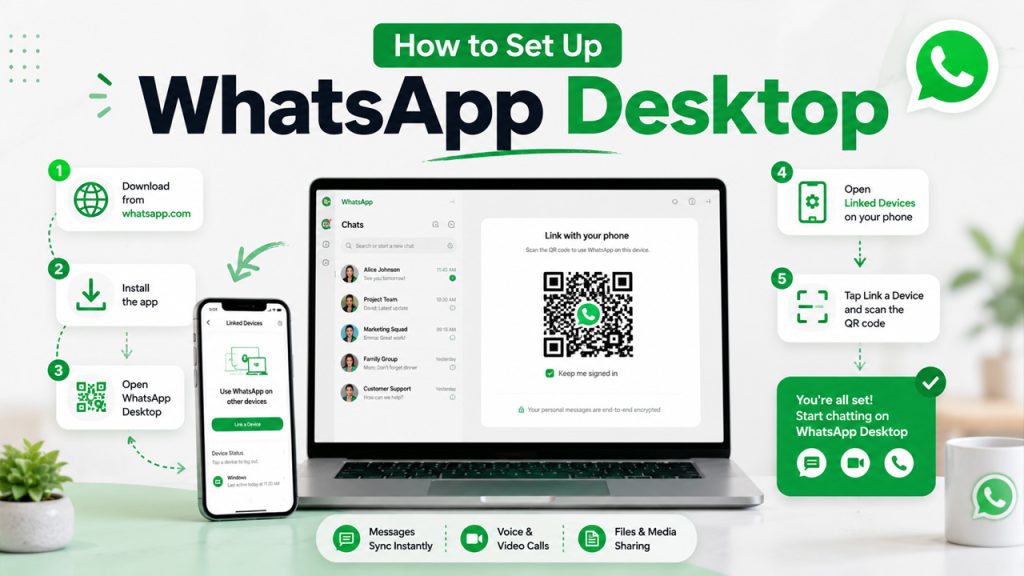
Setting up the WhatsApp Desktop app is just as quick as the web version, with the added benefit of running as a standalone app instead of a browser tab. Here’s how to get it going:
- Visit Whatsapp.com/download and choose the version for Windows or Mac.
- Open the downloaded file and follow the on-screen instructions to install it.
- Launch WhatsApp Desktop, and you’ll see a QR code appear on screen.
- On your phone, go to Settings, then Linked Devices.
- Tap Link a Device, and scan the QR code using your phone’s camera.
Once linked, your messages and media sync automatically, and you can start chatting right from your desktop. The Desktop app also supports voice and video calls, giving you nearly the full WhatsApp experience without needing your browser open.
Common Issues and Troubleshooting Tips
Despite the reliability of WhatsApp Web and Desktop apps, there are some common problems that people face frequently, and thus should be aware of the solutions to these problems.
- The QR Code Does Not Scan: Ensure your phone’s camera scans a clear picture from the screen without any obstructions, and that the WhatsApp app is updated on your phone.
- No message synchronization: Verify your phone is connected to the Internet, as WhatsApp Web and Desktop both rely on your phone staying online.
- Automatic log-out: It takes place if your phone has been idle for about two weeks; simply scan the QR code again to solve this problem.
- Lagging desktop app: Restart the app or update your computer system, as outdated software may lead to slowdowns.
- Can’t link more devices: Remember that WhatsApp only allows up to four linked devices at once, so you may need to remove an old device first.
How WhatsApp Web Supports Guest Posting Businesses: Pros and Cons
For agencies and businesses dealing with guest posting outreach, WhatsApp Web is quite a useful channel for contacting writers, editors, or owners of sites, but it has its drawbacks when things get big.
Pros:
- Fast and Casual communication with bloggers or site owners, who tend to communicate through chat rather than email.
- Simple file transfer capability allowing you to share your article, guideline, or other content in chat.
- Much easier typing and multitasking than handling several conversations from your mobile phone.
- Useful for developing individual relationships with owners of niche sites.
- Free of additional expenses, as it is a free app to use along with WhatsApp.
Cons:
- Only single-user access makes it inconvenient for collaboration within teams for outreach.
- Absence of any automation requires all the follow-ups and reminder activities to be performed manually.
- Impossible to track outreach, as it is impossible to maintain a record of conversations.
- Doesn’t allow for bulk messaging, thus preventing large-scale outreach to numerous publishers.
- Risk of account blocking when using it for sending promotional messages repeatedly.
- Doesn’t integrate with marketing automation software or CRM tools for lead organization and follow-up tasks.
GuestPostCRM vs WhatsApp Web for Guest Post Management
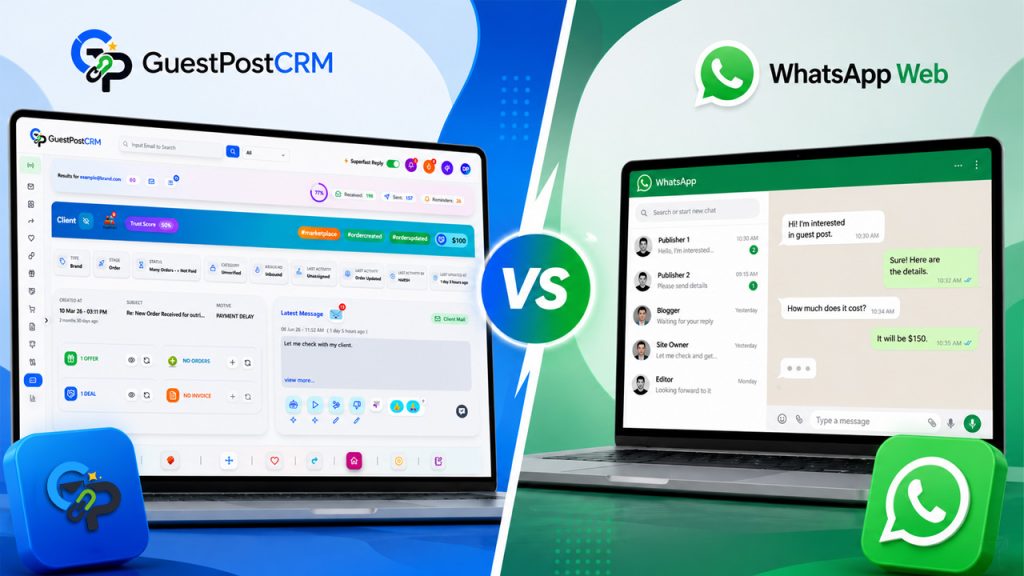
WhatsApp Web is suitable for casual, personal conversations with publishers; however, it wasn’t designed to manage a guest posting process. GuestPostCRM, in its turn, was designed specifically for such purposes, allowing to manage outreach, deals, orders, and payments within one single system.
Here’s how the two stack up:
- Handling emails and inquiries: In case of WhatsApp Web, it’s necessary to keep track of all conversation threads manually, while GuestPostCRM automatically identifies and processes inquiries, turning them into trackable deals.
- Management of deals and orders: WhatsApp Web provides no order management at all, while GuestPostCRM automatically records client data and order information, creating a visual dashboard for each deal.
- Following up and reminders: In WhatsApp Web, you should follow up manually, while in GuestPostCRM, there are automatic reminders and link removal in case of missed deadlines.
- Invoicing and payments: WhatsApp Web provides no tool to keep track of payments, while GuestPostCRM generates invoices and tracks their payment status and is connected with PayPal.
- Communication method: WhatsApp Web uses only manual typing, whereas GuestPostCRM utilizes AI-powered response templates to facilitate fast client communications professionally.
In short, WhatsApp Web can support quick conversations, but once outreach turns into an actual business with deals, payments, and deadlines to track, a dedicated system like GuestPostCRM does the heavy lifting that chat apps simply weren’t designed for.
Conclusion
WhatsApp Web and the WhatsApp Desktop app make everyday messaging a lot more convenient, letting you type faster, share files easily, and stay on top of conversations without constantly reaching for your phone. For personal use and even light business chats, they genuinely get the job done.
That said, once conversations turn into an actual workflow, whether it’s customer outreach, WhatsApp Business Web use, or managing guest posting deals, the limitations start to show. No automation, no order tracking, and no real way to scale beyond one-on-one chats means businesses often need something more dedicated to keep things organized.
That’s really the line worth remembering: WhatsApp Web is great for staying connected, but tools built specifically for your workflow, like CRM for guest posting, or broader Marketing Automation Software for outreach at scale, are what actually help a business grow beyond simple chat.
Frequently Asked Questions
What is the difference between WhatsApp Web and the WhatsApp Desktop app?
WhatsApp Web runs as a browser tab, while the WhatsApp Desktop app is a standalone application that tends to run faster and more smoothly, with added support for voice and video calls.
Why does WhatsApp Web log me out automatically?
This usually happens after about two weeks of inactivity on your linked phone, and can be fixed by simply scanning the QR code again to reconnect.
How many devices can I link to WhatsApp Web or Desktop?
You can link up to four additional devices to a single WhatsApp account at the same time.
Can WhatsApp Web be used for business outreach like guest posting?
Yes, it works well for casual, one-on-one outreach with publishers, but it lacks automation, order tracking, and team collaboration features needed for scaling outreach.
What's a better alternative to WhatsApp Web for managing guest posting deals?
GuestPostCRM is built specifically for guest posting workflows, offering automated follow-ups, deal tracking, and invoicing, things WhatsApp Web doesn't support.


.png)
.png)