



.png)
.png)
Picture this: you're studying to appear for your exams. On the day of your exam, you wrote answers thinking you'd ace the test. However, your school never gave you a report card. You have no clue how your teachers graded you, which leaves you guessing. That's exactly how many website owners have run their sites to date. They publish content blindly, wait, and hope Google notices them. However, Google does maintain a report card for your site, and you can read it for free. It's called Google Search Console.
It records everything about your site, such as who stumbled upon your pages, what they looked for, and what's holding your site back. The first step is a simple Google Search Console login, so let's see how to get in and use it well.
What Is Google Search Console?
Google Search Console shows how your website performs in search results. It tells you about the pages that Google finds, searches that bring people to your site, and problems that stop your site from climbing ranks. If you're wondering whether you need it, then yes, you do. If you own any website, you need to know how it is doing. Unlike many SEO tools that shoot arrows in the dark, it draws data straight from Google and presents it to you in a way that help you adjust your strategy. That makes it the most trustworthy place to start.
How Google Search Console Works
It works in three major steps. First, Google follows links and reads your sitemap to find your pages. Second, it keeps them in a huge library called the index. Third, it finally shows them to people who search for related topics. Now, while Google does all this, Search Console watches it closely and reports back. If Google fails to find or store your page, you'll see a warning. If it shows in results, you'll see how often people see and click on it.
Take a quick look at the main reports, so you know what to look for:
| Report | What It Tells You |
| Performance | Searches, clicks, and views for your pages |
| Indexing | Which pages Google stored, and which it skipped |
| Sitemaps | Whether Google can read your page list |
| Core Web Vitals | How fast and smooth your pages feel |
| Security Issues | Hacks or harmful content on your site |
People spend most of their time analyzing the performance report. The Performance Analytics view shows a number of clicks, impressions, and average position. Moreover, it also shows a click-through rate, which tells you the share of people who see your page and actually click it.
Google Search Console Login: Step-by-Step Setup Guide
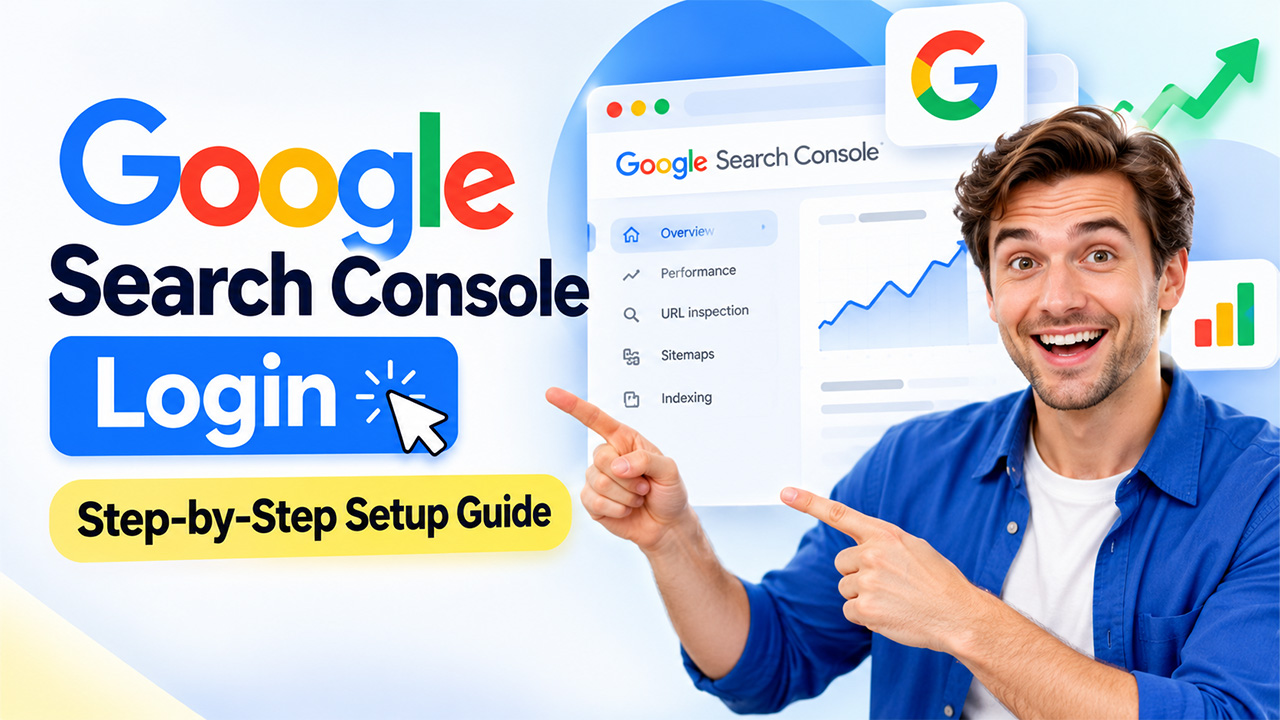
The Google Search Console login is quick. You just need a Google account and a website you own.
- Sign In With Your Google Account: If you have more than one Google account, use the one you want to tie to your website. Choose carefully, because it becomes the owner.
- Open the Google Search Console Website: Type search.google.com/search-console into your browser. This will take you to a welcome page.
- Click “Start Now”: This takes you to the setup screen. If you've used it before, you’ll be taken straight to the dashboard.
- Choose a Property Type: You’ll be given two options: domain property or URL prefix property. A Domain property covers every version of your site. A URL prefix property covers only the exact address you type. Pick one depending on what you want to check.
- Add Your Website URL: Type the web address exactly as it appears in your web browser. Even a small typo can cause errors later.
- Verify Website Ownership: Google offers a few ways for verification, such as a DNS record, an HTML file, an HTML tag, or Google Analytics. Pick whichever option seems easiest to you.
- Access Your Search Console Dashboard: After you pass the verification check, click "Go to property." Your reports will appear in the left menu.
Google Search Console Login Problems and How to Fix Them
While Google Search Console is easy to access, you may occasionally encounter login or setup issues. Here’s how to resolve common Google Search Console login problems and get back to monitoring your website’s performance.
- Wrong Google Account: If you see a "wrong account" warning, you may be signed in to a different Google account and not the one that owns the site. Switch accounts and try again.
- Website Verification Failed: If your verification fails, wait a couple of hours and then click verify again. DNS changes can take time. Be patient.
- Search Console Reports Showing No Data: A brand-new property takes at least two days to collect enough data to give you conclusive results. Check back soon.
Key Benefits of Using Google Search Console
Understanding the benefits of Search Console can help you make the most of its features, starting with a simple Google Search Console login.
- Free to Use: You don't need to pay anything to use Search Console. It gives you real data from Google itself free of cost. This is what makes it a good and safe starting point.
- Monitor Real Google Search Queries: It shows you the exact words that people typed in the browser before they land on your site. That helps you understand audience intent, so you can deliver what readers actually want.
- Identify Indexing and Security Issues: It shows problems that hold your website back, such as broken pages, indexing errors, and security issues as alerts. You can fix them before they hurt your traffic.
- Track Website Search Performance: You can update content if it does not perform as it should and compare dates to see whether a change helped. It eliminates the guesswork and tells you clearly if the work paid off or not.
- Monitor Mobile Usability: Most people browse on their mobile phones, so it is imperative that your site loads well on mobile screens.
- Help Google Discover New Pages: You can submit a sitemap or request a page check. New content gets noticed sooner.
How to Improve SEO Using Google Search Console
Data that sits untouched serves no purpose. Data only helps when you act on it. Here's where to start:
- Improve Titles and Meta Descriptions: Find those pages that have many views but few clicks. Rewrite their titles and meta descriptions in a clearer way. It usually attracts more visitors.
- Find Keywords Ranking on the Second Page: Look for searches where you rank around positions 11 to 20. A small update to those pages can push them onto page one.
- Fix Indexing Errors: Open the indexing reports to check which pages have been marked "not indexed." Google cannot rank the page it can't find.
- Submit Your XML Sitemap: It gives Google a clear list of pages to read. It helps new posts get found faster.
- Review Core Web Vitals: Use the Core Web Vitals report to find slow pages and fix them. Faster pages keep visitors from leaving.
- Update Content Losing Search Traffic: Spot pages whose views are dropping. Update facts, add examples, and give them a second life.
One important thing to keep in mind is that in the SEO vs PPC debate, paid ads indeed get you visitors but only while you pay. The moment you stop paying, you start losing visitors. Search Console, on the other hand, shows free traffic that you've earned, which works long after you've published. Many teams use both and use this data to narrow down places where paid ads are needed.
Conclusion
With AI in the picture, search keeps changing. This makes layouts shift, new features appear, and competitors publish daily. To keep up with changing dynamics, check your site data regularly. And to do that, make Search Console a habit. Log in once a week, if not more, look at your performance report, and fix one thing at a time. Over time, these small steps add up. Your Google Search Console login takes only a few minutes, but that insight can shape months of work. Start today. Set up your account, add your sitemap, and let the numbers guide your next steps. Start collecting data now and elevate your website visibility.


.png)
.png)